
The file is corrupt and cannot be opened" - error in Microsoft Office 2010

Mostly we have seen this error with email attachments, when a user gets an email in his / her inbox having, Microsoft Word, Microsoft Excel or Microsoft PowerPoint file in some older version. This error is not Microsoft Office bug, as so many blogs says but it is your security settings that are preventing Internet E-mail attachments to being opened at your computer. Secondly, this error comes to Lucky person J not everyone gets this error.
Quick Fix,
Open your Microsoft Word 2010, Microsoft Excel 2010 or Microsoft PowerPoint 2010 and try as under;
1. Open Microsoft Word, Excel or PowerPoint 2010.
2. Click on File > Options.
3. Select Trust Center > Trust center settings.
4. Select Protected view.
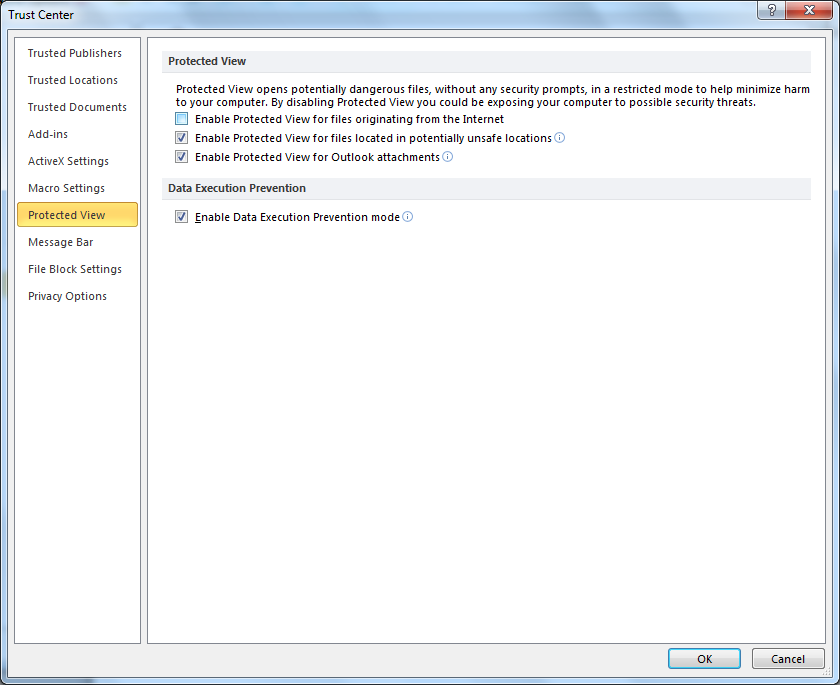
5. Uncheck “Enable Protected View for files originating from the Internet” under Protected View > OK.
6. Restart Microsoft Word / Excel or PowerPoint 2010 and try to open document.

If you are unable to open your document with only this deselect, please deselect all under Protected View.

Permanent Fix,
If you want to fix it permanent without any loosing, security feature, do the following:
  1. Open the Control Panel.
  2. Select Administrative Tools.
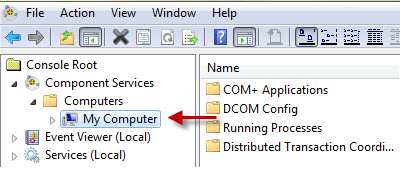
  3. Open Component Services and expand the tree under Console Root to Computers.
  4. Expand Computers to My Computer.
  5. Right-click on My Computer and select Properties.
  1. Open the Default Properties tab and set the following values:
    • Default Authentication Level: Connect
    • Default Impersonation Level: Identify
 see Microsoft Link for reference, http://support.microsoft.com/kb/2387587. Microsoft also says that above solution will work for these errors;
  1. Excel: "The file is corrupted and cannot be opened."
  2. Word: "Word Experienced an error trying to open the file."
  3. PowerPoint: "PowerPoint found a problem with content in <filename>. PowerPoint can attempt to repair the presentation." 
hope this will solve your problem, If you till have any question, please have a comment or only leave comments for your presence :)

Comments

  1. Many Thanks Rizwan for this fix.. I have been battling for months to get this sorted.

    ReplyDelete
  2. Thank you so freaking much! Now I can finally open the PP:s from my school so that I can write my essay! Hurray! You are the best, seriously thank you so much!!!

    I would like to recommended to read this blog for more information:: PowerPoint File Recovery using PowerPoint Repair Tool

    ReplyDelete

Post a Comment

Popular posts from this blog

Setting up per connection Limit Bandwidth on MikroTik Router

Generally, I do not prefer to add any unwanted restriction on the network user until its required due to some Administration reason. I know, there are more ways to tackle this setting up per connection Limit Bandwidth on MikroTik Router question comes into one’s mind but I resolve my concern while using MikroTik PCQs feature in MikroTik Queue Type and then calling this Queue Type to Simple Queue. There are more options for setting up per connection Limit Bandwidth on MikroTik Router but please share your concern to add anything else in this article. Let’s start to add our configurations; I am using WinBox for this Article but you can use anything you are convenient to use. Let’s start Step by Step procedure for Setting up per connection Limit Bandwidth on MikroTik Router, any version.  Setup Queue Types After Successful Login, click on Queues menu. Navigate to Queue Types and Press Add + (Plus Sign) to add a new Queue Type. Type a Name like in my scenario,...

You have been logged on with a temporary profile - Windows 7

You have been logged on with a temporary profile. “You cannot access your files and files created in this profile will be deleted when you log off. To fix this, log off and try logging on later. Please see the event log for details or contact your system administrator.” I am an I.T Professional since 2006, I encounter this error in Windows XP, then in Vista and now in Windows 7 as well, “ I think this is a Windows Family Problem ”. Time changed, Microsoft Windows changes a lot in themes and off-course in other technical, performance and security aspects as well but this error is not fixed. From time to Time, We (I.T Professionals) works to fix this error, these are the common practices that we can do for this error. ·          Restart Your Computer , hopefully, you will be able to get your OLD profile back in normal and same working condition. ·          Corrupted Profile , Logon with ...